Getting Started 1 - End


- Details
- Parent Category: Simple Sit
- Created on Saturday, 30 January 2010 08:36
- Last Updated on Wednesday, 11 September 2013 14:40
- Published on Saturday, 30 January 2010 08:36
- Written by sandrine
- Hits: 3122
Phase Start
1.open the box: it contains only 3 animations, drag the notecard setupmultisit you just created.
2.drag the script sitmanager
3.drag the script multisit
4.drag the script adjuster
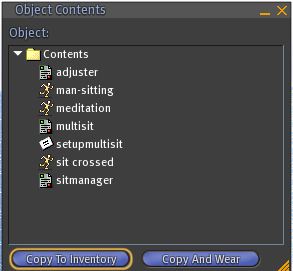
Use of seat
1.Sit on the seat: you take the first pose and a menu opens to offer all of the poses, click one of them to change your pose
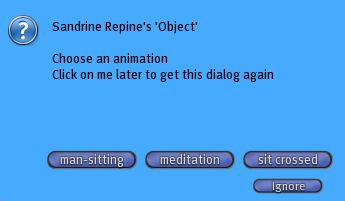
2. Type /1a in Chat : the adjust dialog box opens
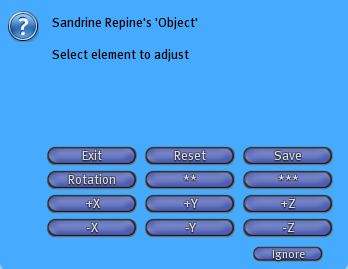
3.Use the buttons to adjust the pose, finish by pressing the « save » button
4.change the pose and return to the initial pose to verify that the system has saved the adjustment
Alias names and mode change
1. create a notecard that you call configmultisit
2. enter these informations in this notecard:
@version
1
@mode
1
@alias
man-sitting|cosy
sit crossed|straight
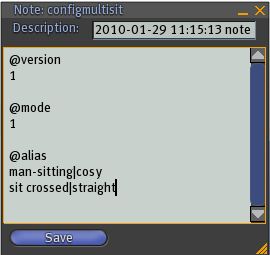
3.save the note and drag it in the inventory of the box.
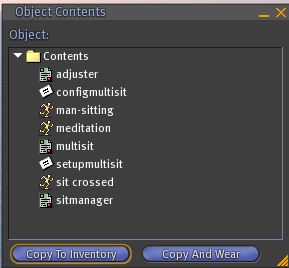
4.when you get the end message of the note sit on the box. You see:
a.change the names of animations in the dialog box. It was produced by that portion of the configuration:
@alias
man-sitting|cosy
sit crossed|straigh
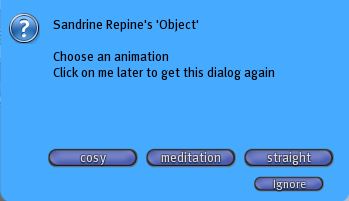
b.the dialog box reappears after selecting a pose. It was produced by the choice of mode 1:
@mode
1
5.open the note configmultisit located in the inventory of the box and replace the previous content from the following:
@version
2
@mode
4
Save the note.
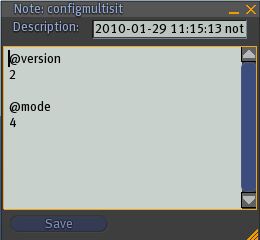
Note: the version number is used to indicate to the script that the contents of the note has changed. If we let the value 1 note was not read. This is very useful in containing an inventory of many notes. Just to update the note increase the value of a unit.
6.when you get the end message of the note sit on the box. This time no dialog box appears. But if you click on the box the pose changes. Mode 4 is indeed the one that corresponds to the change poses with click. You also notice that the poses will follow in setup order.
Change the order of poses
1.reopen the note configmultisit and replace the previous content by the following:
@version
3
@mode
5
@list
meditation
man-sitting
sit crossed
Save the note.
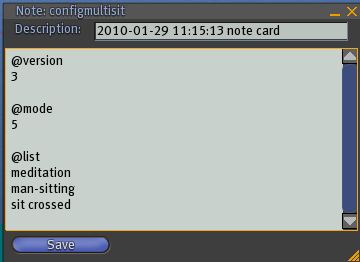
2.when you get the end message of the note sit on the box. You see that once you take first the pose meditation. Indeed the @list command impose an order of poses. You still have no dialog box and no change with a click. Mode 5 is the change in delay. After a period of 10 seconds following pose in the list is implemented and so forth, and back to the first end of the list. The value 10 seconds is the default.
3.If you want another value it must be entered in the note. Replace the contents of the note by the following:
@version
4
@mode
5
@list
meditation
man-sitting
sit crossed
@temp
2
Save the notes.
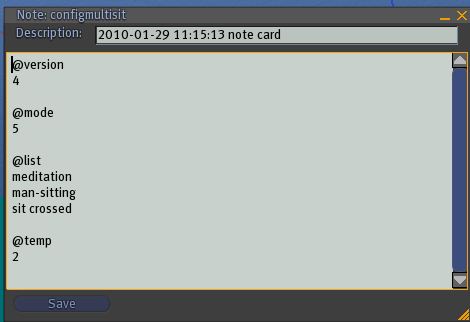
This time the poses change every 2 seconds.
4.Replace the contents of the note by the following:
@version
5
@mode
7
@list
meditation
man-sitting
sit crossed
@sequence
2
10
15
Save the note.
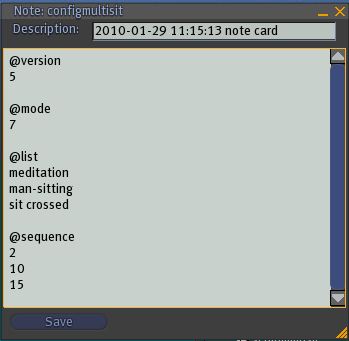
5.when you get the end message of the note sit on the box. The poses succeed automatically with different deadlines. These deadlines are set by the command @sequence. The first time defined by the @list takes 2 seconds, the second 10 seconds, and the third 15 seconds.
- << Prev
- Next