Getting Started 2


- Details
- Parent Category: Simple Sit
- Created on Sunday, 07 February 2010 09:18
- Last Updated on Wednesday, 11 September 2013 14:40
- Published on Sunday, 07 February 2010 09:18
- Written by sandrine
- Hits: 1410
For this second tutorial we process for 2 avatars and many animations
Stage setup (need 2 avatars)
1. Create a box on the floor and enlarged it a bit to sleep two avatars. This will be our bed.
2. Open the box, yet it is empty
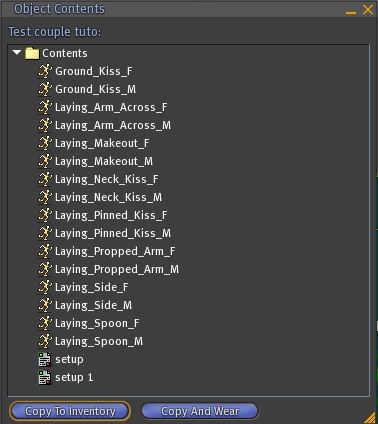
3. Drag from your inventory the following animations :
Ground_Kiss_F
Ground_Kiss_M
Laying_Arm_Across_F
Laying_Arm_Across_M
Laying_Makeout_F
Laying_Makeout_M
Laying_Neck_Kiss_F
Laying_Neck_Kiss_M
Laying_Pinned_Kiss_F
Laying_Pinned_Kiss_M
Laying_Propped_Arm_F
Laying_Propped_Arm_M
Laying_Side_F
Laying_Side_M
Laying_Spoon_F
Laying_Spoon_M
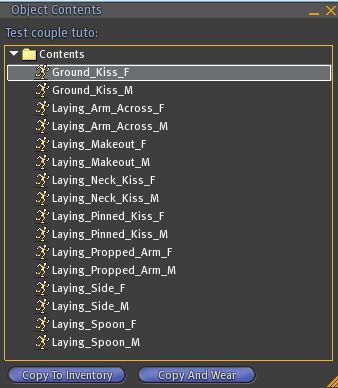
4. Drag a script setup
5. Drag the setball object: a ball is created on top of the box
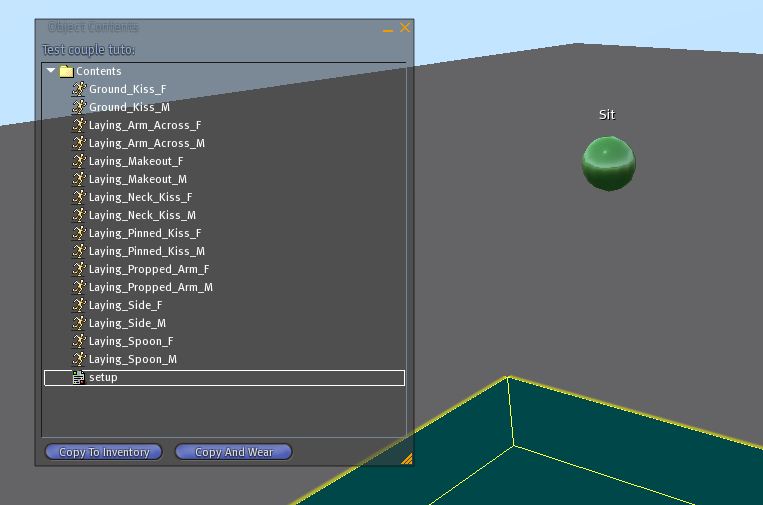
6. An avatar (a nice one if possible) clicks on the ball : it is now seated and the ball deforms to be more accessible
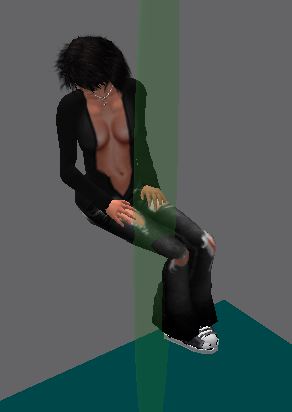
7. The avatar accepts authorization animation
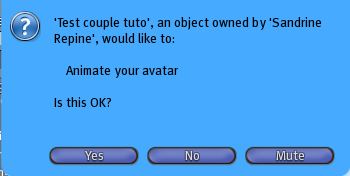
the first animation is in action
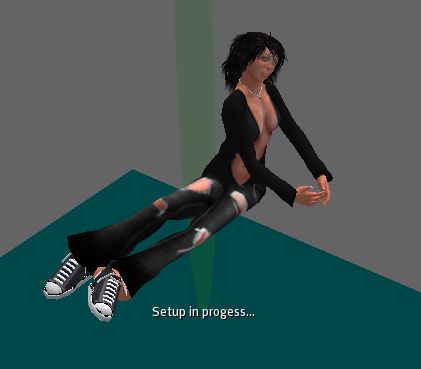
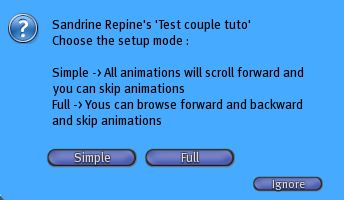
8. select "Full" in the menu
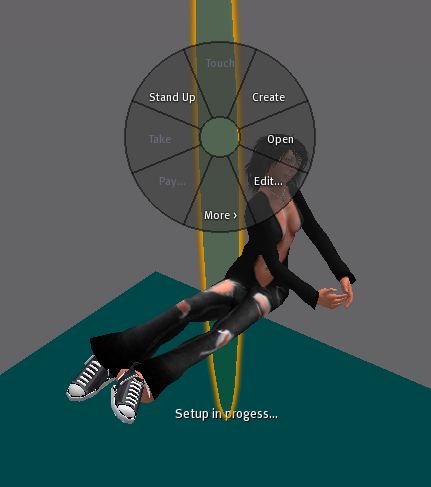
9. Right click on the ball and switch to edit mode
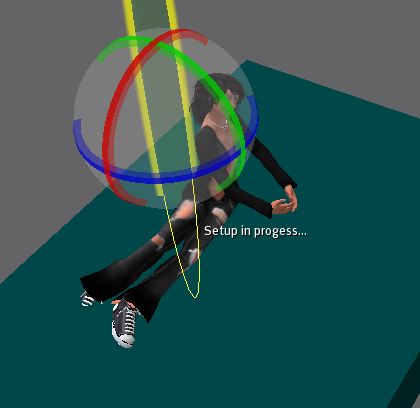
10. Adjust position and rotation
11. Drag a second script setup in the inventory
12. Drag a setball object : a second ball is created on top of the box
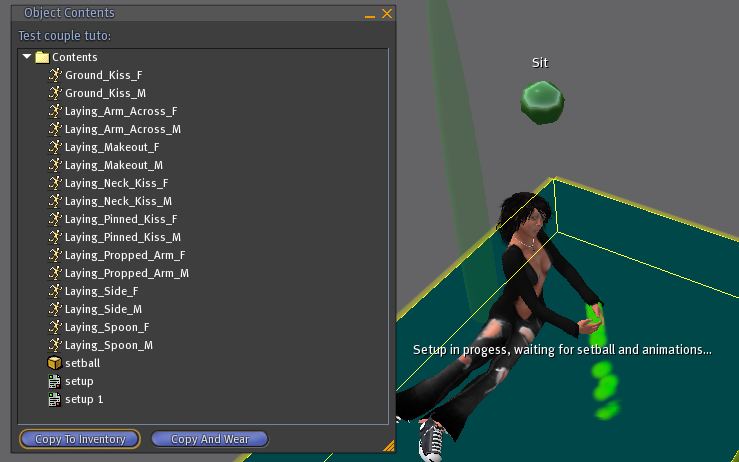
13. Closethe content window
14. A second avatar clicks on the ball : he is now seated and the ball deforms to be more accessible
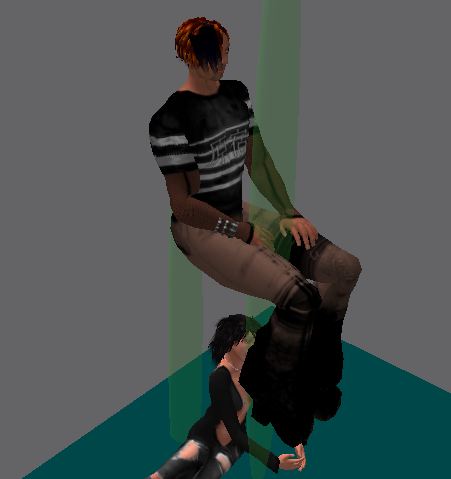
15. He accepts avatar animation
16. Select the button "full" in the dialog box.
17. Changes the pose with the "Next" button to change for pose Ground_Kiss_M
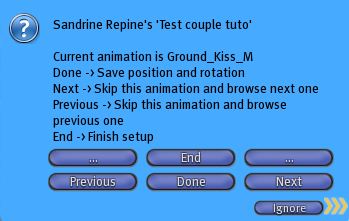
18 Right click on the ball and switch to edit mode
19. Adjust position and rotation to align with the first avatar. Repeat if necessary adjustment of the first avatar.
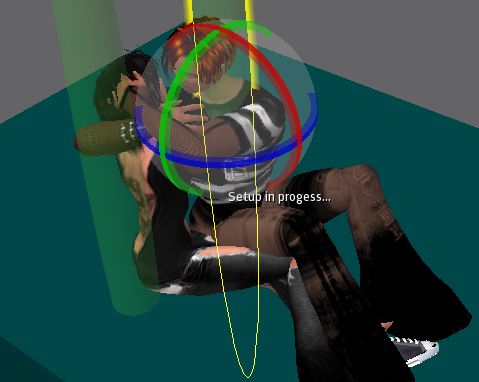
20. When the two avatars are well positioned click "done" to each dialog box. Now the 2 settings are saved. There is an indication *** already ajusted *** in the dialog box :
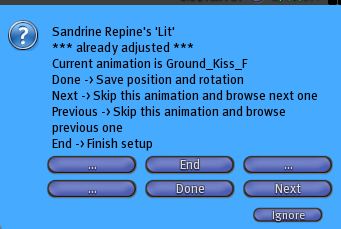
21. Do the same way with other animations in groups of two :
Laying_Arm_Across_F
Laying_Arm_Across_M
Laying_Makeout_F
Laying_Makeout_M
Laying_Neck_Kiss_F
Laying_Neck_Kiss_M
Laying_Pinned_Kiss_F
Laying_Pinned_Kiss_M
Laying_Propped_Arm_F
Laying_Propped_Arm_M
Laying_Side_F
Laying_Side_M
Laying_Spoon_F
Laying_Spoon_M
You can browse animations with buttons "Back" and "Next".
23. When all animations have been adjusted click "end" in first avatar dialog box : the ball disappears and the avatar is ejected.
24. Click the button "Go to page" in the dialog box to open the webpage
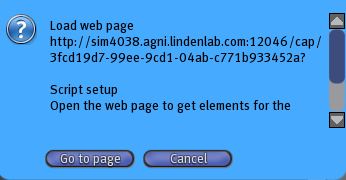
25. in web page select the setup information and copy to clipboard (CTRL C or menu). Here is an example of setup but yours must be different :
Ground_Kiss_F @ -57,22,100 @ 0,0, -84
Laying_Arm_Across_F @ -57,22,100 @ 0,0, -84
Laying_Makeout_F @ -57,22,100 @ 0,0, -84
Laying_Neck_Kiss_F @ -57,22,100 @ 0,0, -84
Laying_Pinned_Kiss_F @ -64,12,100 @ 0,0, -88
Laying_Propped_Arm_F @ -64,23,100 @ 0,0, -93
Laying_Side_F @ -64,23,100 @ 0,0, -93
Laying_Spoon_F @ -64,23,103 @ 0,0, -93
26. in your inventory create a new notecard and call that note setupmultisit, open the notecard and paste setup information that you have in your clipboard
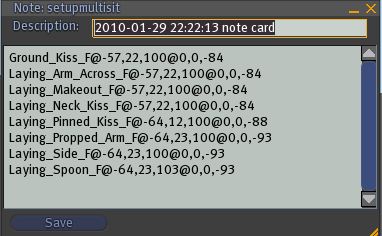
27. Save the notecard setupmultisit you just created and drag it in the inventory of the box
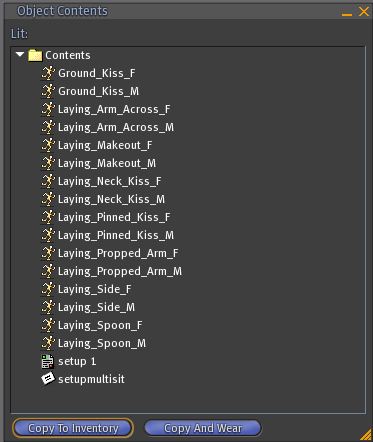
28. Click on button "end" of the second dialog box avatar : the ball disappears and the avatar is ejected
29. Click the button "Go to page" in the dialog box to open the webpage
30. in web page select the setup information and copy to clipboard (CTRL C or menu). Here is an example of setup but yours must be different :
Ground_Kiss_M @ -5,27,97 @ 0,0, -98
Laying_Arm_Across_M @ -5,27,97 @ 0,0, -98
Laying_Makeout_M @ 0,21,101 @ 0.0, -98
Laying_Neck_Kiss_M @ 0,21,101 @ 0.0, -98
Laying_Pinned_Kiss_M @ 0,21,101 @ 0.0, -98
Laying_Propped_Arm_M @ 0,21,101 @ 0.0, -98
Laying_Side_M @ 3,21,101 @ 0.0, -94
Laying_Spoon_M @ 3,21,99 @ 0,0, -94
31. Create a new notecard and call that note setupmultisit, open the notecard and paste setup information that you have in your clipboard
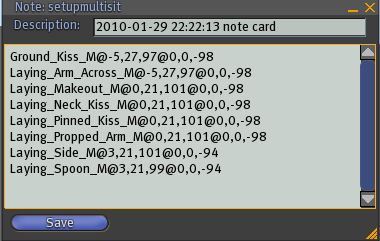
32. Save the notecard setupmultisit you just created and drag it in the inventory of the box
- Prev
- Next >>