User


- Details
- Parent Category: Simple Sit
- Created on Wednesday, 03 March 2010 21:07
- Last Updated on Wednesday, 11 September 2013 14:40
- Published on Wednesday, 03 March 2010 21:07
- Written by sandrine
- Hits: 276
Animations
The user dialog box is always very explicit. In the simple case there is animation names (or alias) :
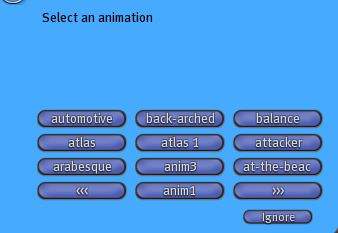
If there are more than 12 names, there are also browse arrows.
In the case where you have groups they appear first :
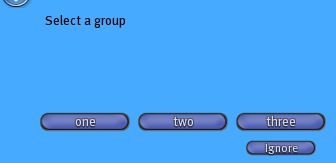
When you click on a group button the animations of this group appear in another dialog box.
Adjust
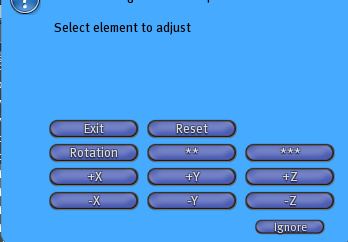
To access to adjut dialog box you must type /1a in the Chat. Then you get this dialog box :
Or this one if there is an adjuster script in the inventory :
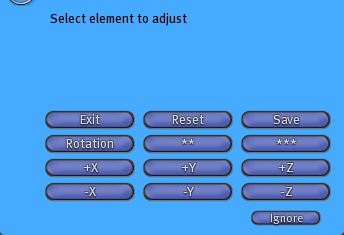
The buttons X, Y and Z are used to adjust on axis X, Y and Z.
There is a button "Rotation" there, if you click on it its name change for "Position". So you can adjust position or rotation with the same buttons X, Y and Z.
There are also buttons with stars, 2 and 3 stars. They are used for adjustment level. If you click on ** this button change for *, and so on. So you have 3 adjustment levels. For position you have 1cm for 1 star, 2cm for 2 stars and 5cm for 3 stars. For rotation you have 1° for 1 star, 2° for 2 stars and 5° for 3stars.
With the button "Reset" you come back to first position and rotation.
The save button save position and rotation in adjuster script memory for this avatar and this animation.