Screen

- Details
- Parent Category: Ultimate Change Link
- Created on Sunday, 22 May 2011 07:42
- Last Updated on Wednesday, 11 September 2013 14:40
- Published on Sunday, 22 May 2011 07:42
- Written by sandrine
- Hits: 178
In this example we animate a screen
Setup step
First create a screen :
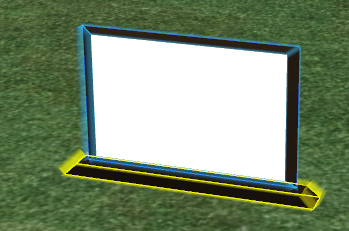
Here i use only 2 prims : a child for the screen and the root.
Drop the script "child" in the scrren prim :
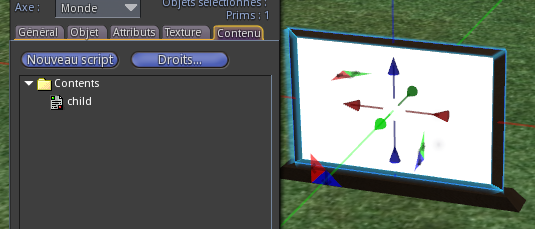
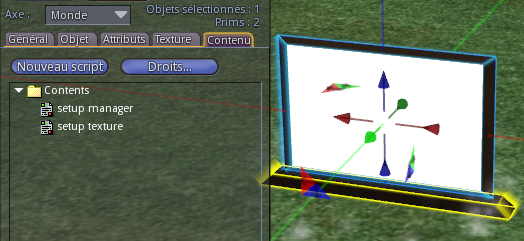
Drop the scripts :
- setup manager
- setup texture
in the root prim :
Click on screen, you get this menu :
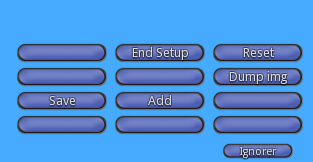
Drag and drop a texture on screen :
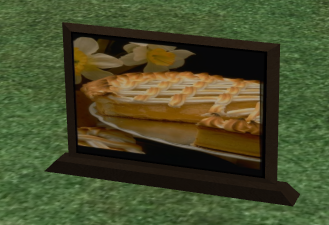
and click on button "Add". You get this menu :
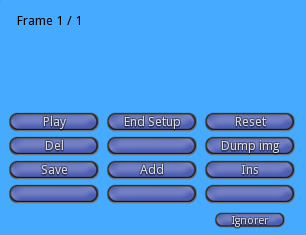
You can see there is now a frame (Frame 1/1) and new buttons. Drag and drop another texture :
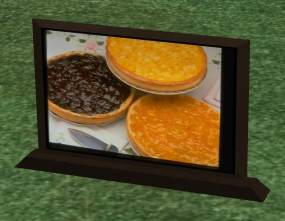
Continue to add frames...
For example i used 9 textures :
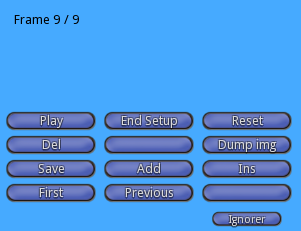
You can browse frames with buttons "Previous", "Next", "First" :
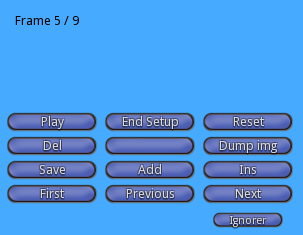
You know the current frame with the text menu : "Frame 5/9". First number is the current frame and second number total frames number.
You can also play all frames with button "Play". You get a new menu to control speed :
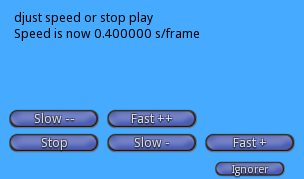
Click on stop to get back the main menu.
You can change a frame and save new position and rotation with button "Save".
You can insert a new frame before he current frame with button "Ins".
You can delete the current frame with button "Del".
When all is good click on tha button "Dump img". You get informations in chat :
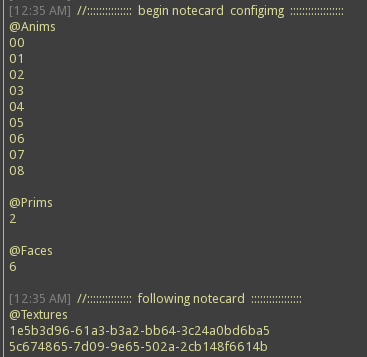
Copy and paste them in a notecard called "configimg" :
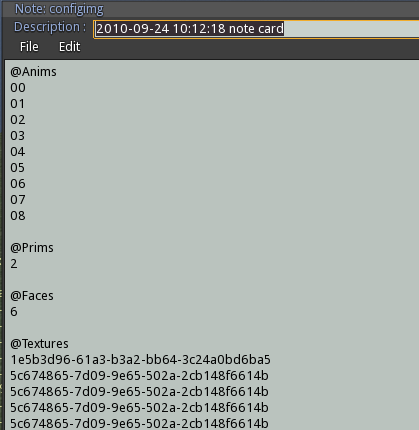
You can clean text for no needed informations. At least click on "End Setup" button to del all setup scripts.
Action step
Now drop in root prim :
- notecard "configmimg" that you just created
- script "move texture"
- script "trigger touch"
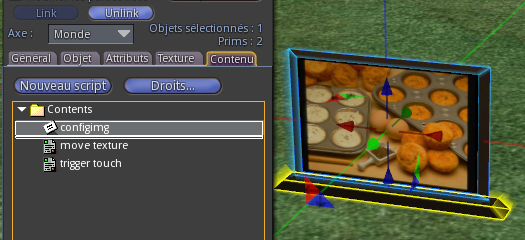
Wait for scripts to load notecard.
Now you must change parameters in script "trigger chat" to make it work as you want. Open the script with a double click on its name.
You can see there are many parameters all full commented for all situations.
We want movement to start with on touch.
We want movement to also stop on touch.
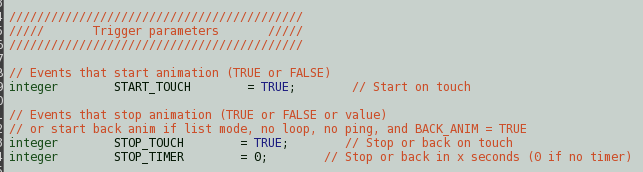
We want browse mode :
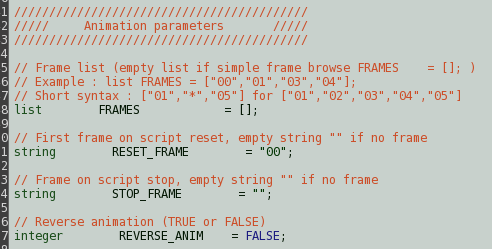
We want no ping, no loop :
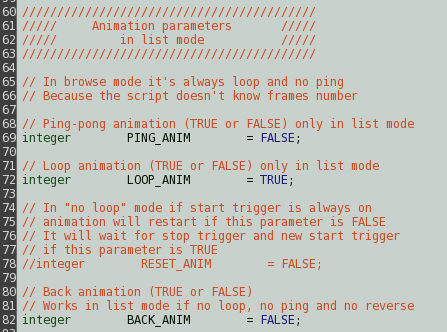
At least we set time parameters :
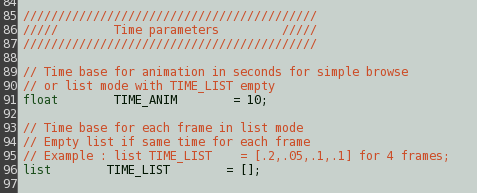
When you save the script "trigger chat" you start again reading notecard for script "move texture" because inventory has changed. Wait for end of reading.
All is good now. Start and stop on click !