Use

- Details
- Parent Category: Ultimate door system
- Created on Friday, 22 February 2013 10:17
- Last Updated on Wednesday, 11 September 2013 14:40
- Published on Friday, 22 February 2013 10:17
- Written by sandrine
- Hits: 225
Overview
Ultimate system door is very easy to use. When you make a setup and drop scripts your system is functional. By default it works with a sensor to detect avatars with a range of 4 meters and a rate of 4 seconds. Access is set to "all" and menu access to "owner".
Systems
When you make a setup, this setup belongs to a system. A system is a functional unit that can be :
- a simple door
- a double door
- a complex door (with up to 10 setups)
The first system has number 0, the next one 1 and so on till number 9.
Get the menu
If you have a script command in a system you get the menu with command /system_number_door, for example :
- system 0 : /70door
- system 1 : /71door
- system 2 : /72door
- ...
If you have script trigger in a system (mostly if you have many systems in a linkest), you have also a remote and you get the menu with a click on the remote.
Standard menu is this one :
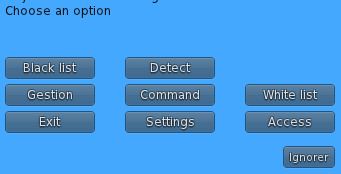
But if there is not a script access in this system you get only settings options :
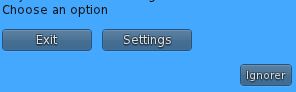
Settings
In the settings options you can manage sensor and operation times :
- sensor range : detection distance of avatars (default is 4 meters), when an authorized avatar is in the range the door opens and stay opened while this avatar is in the range. If you set value 0 for range the door works with a click.
- sensor rate : sensor refresh frequency (default is 4 seconds), take care of lag effects of this value !
- open time : opening time (default is 4 seconds)
- close time : closing time (default is 4 seconds)
- open temp : if sensor range is 0, when you click on the door it opens and stay opened the time setted there. If you set value 0 the door stay opened till another click (usefull for shutters for example).
The settings menu may have 2 aspects. If sensor range is 0 :
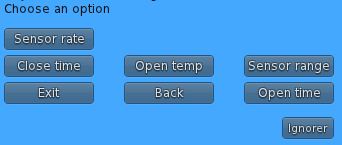
And if sensor range is not 0 :
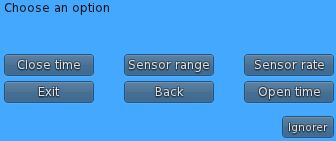
In this case you cant manage open temporisation because you dont need it.
Access
The menu access is simple :
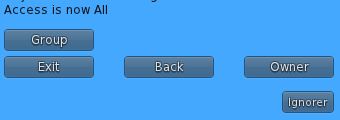
You can choose access between Owner, Group and All. But you can append names in black and white lists.
Black and white lists
You can add names with sensor detection (the simple way but avatar must be present !) or add name in textbox.
When you use the Detect option you get the list of avatars presents (in a range of 96 meters and with a limit of the 16 closest). When you click a name you get this menu :
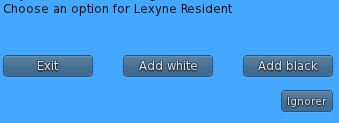
So you can add the name to white or black list. You can manage your list with this menu :
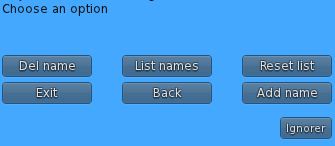
List all the names, add or delete a name and reset the list. You have the same options for white list.