Getting Started


- Details
- Parent Category: Simple rezzer
- Created on Saturday, 27 March 2010 14:34
- Last Updated on Wednesday, 11 September 2013 14:40
- Published on Saturday, 27 March 2010 14:34
- Written by sandrine
- Hits: 986
The setup
First create your rezzer. Any object can be a good rezzer. Here is the one i created :
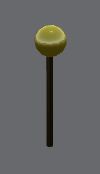
Now you must have object to rez. These objects must be copy. For my example i take 5 free stuff. Put your objects at the correct place around the rezzer :
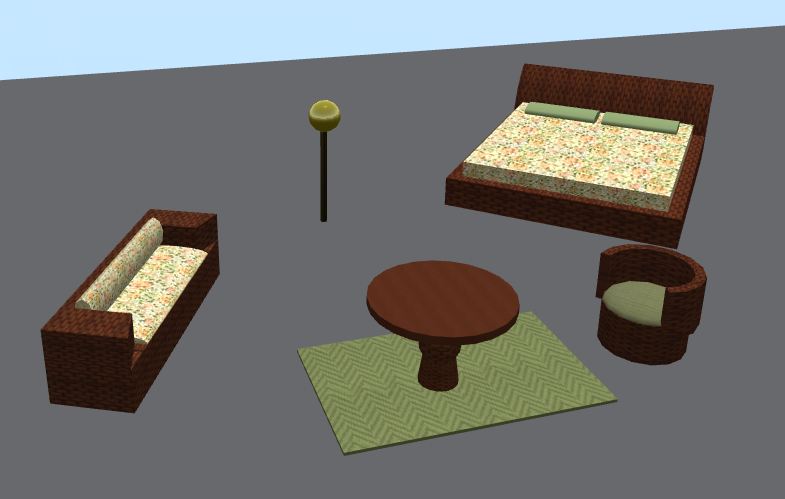
Now drop the script rezzer setup in the rezzer :
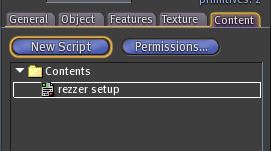
You get this menu :
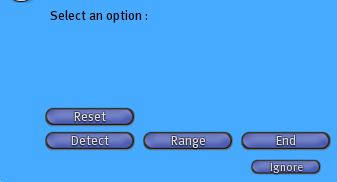
The option range is important because there is a sensor in the rezzer and this sensor can only detect 16 objects and has a detect range. You can chose the range if you click on range button :
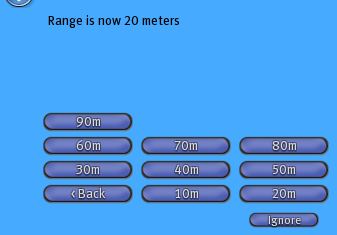
Select the good one for you. If range is too small you wont get all your objects, and if it is too big you may not have the good objects in the 16 selected. If you want to detect more than 16 objects make the setup in 2 steps.
When you click on Detect button you get the objects detected in the range :
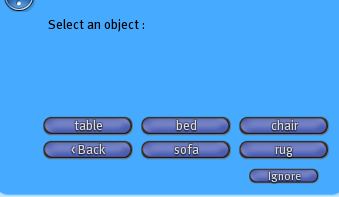
Select the first object (the object chair in my example). You get information in the Chat :

Now position and rotation are saved for the first object. The menu is now :
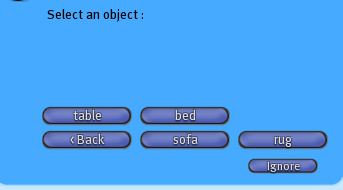
Select the second object.

And so on all objects. In the Chat you have all the informations :

Now click on the End button of the menu :
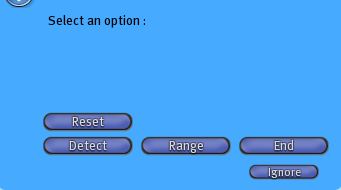
You get this new menu :
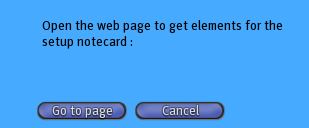
Select "Go to page" to open the web page :
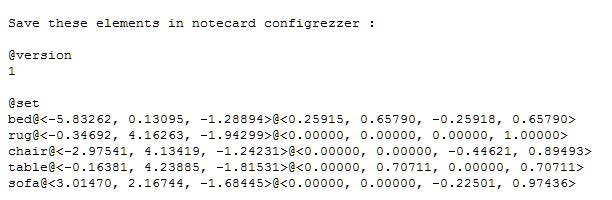
and paste these elements in a notecard called configrezzer :
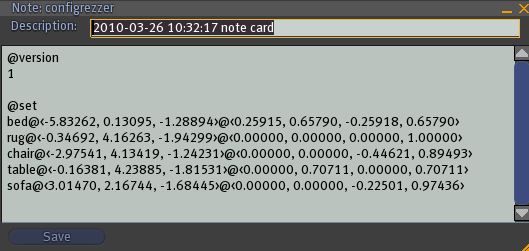
When you open the rezzer inventory it is now empty :
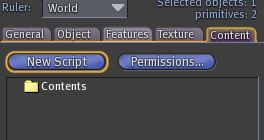
In each object to rez drop the script rezobject :
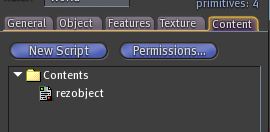
Drop in your rezzer the objects (with the script rezobjet inside), the notecard configrezzer and the script rezzer :
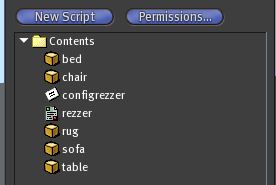
The rezzer is ready !
How to use the rezzer
Click on the rezzer. You get this menu (since V1.3 there is also a button "Rez All") :
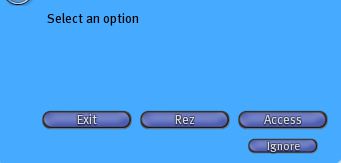
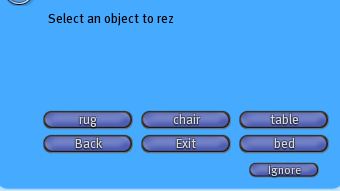
Click on Rez. You get a new menu with all your objects :
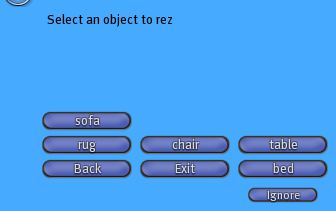
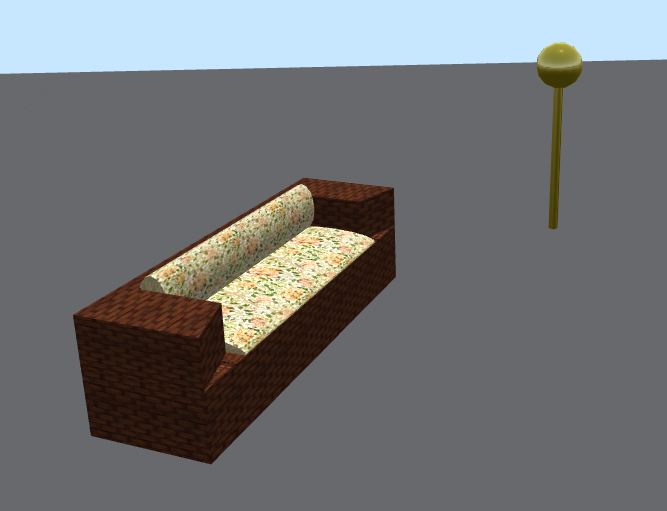
Click on one. The object is rezzed :
The menu has changed. You get only the object not rezzed :
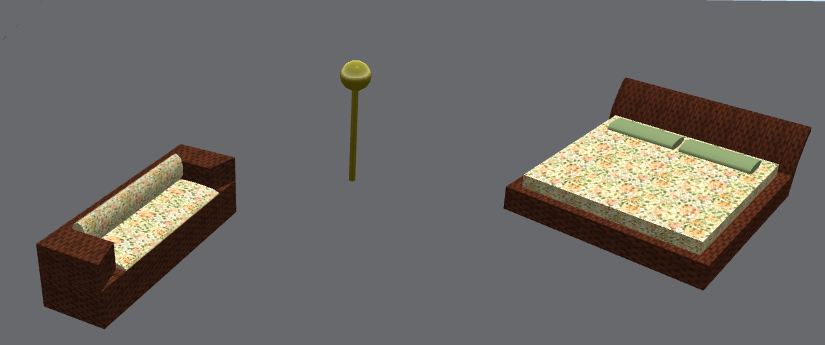
Click on another button to rez a second object :
The menu has changed :
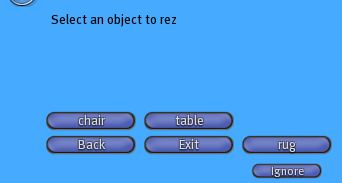
If you click Back you get the main menu :
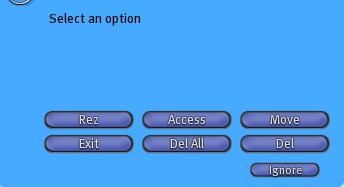
You can del all rezzed objects with button Del All.
You can rez new object with button Rez (since V1.3 there is also a button "Rez All").
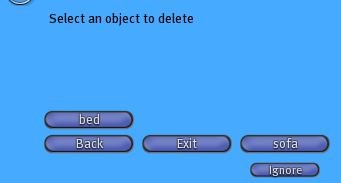
You can del objects with button Del :
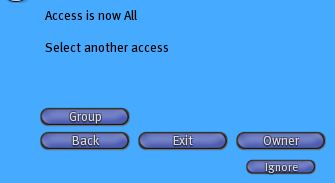
You can manage access with button Access :
You can adjust objects position and rotation with button Move if you move the rezzer ! Actually the rezzed objects are not linked to the rezzer and if you move it the objects dont follow, so you can move the rezzer dans click on the button Move to move the rezzed objects.
Since V1.2 if you move a rezzed object the rezzer get the new coordinates and save them in memory. But if there is a script reset you lose them. You can configure configrezzer notecard (@dump section) to get the new coordinates in Chat so you can change the line of the object in the @set section. It is a good way to setup the rezzer but not a good one for final user because rezzer becomes chatty.
menu configuration
You can change the menu names. For example change the notecard configrezzer for this :
@version
2
@set
bed@<-5.83262, 0.13095, -1.28894>@<0.25915, 0.65790, -0.25918, 0.65790>
rug@<-0.34692, 4.16263, -1.94299>@<0.00000, 0.00000, 0.00000, 1.00000>
chair@<-2.97541, 4.13419, -1.24231>@<0.00000, 0.00000, -0.44621, 0.89493>
table@<-0.16381, 4.23885, -1.81531>@<0.00000, 0.70711, 0.00000, 0.70711>
sofa@<3.01470, 2.16744, -1.68445>@<0.00000, 0.00000, -0.22501, 0.97436>
@menu
soft bed|bed
nice rug|rug
easy chair|chair
table|table
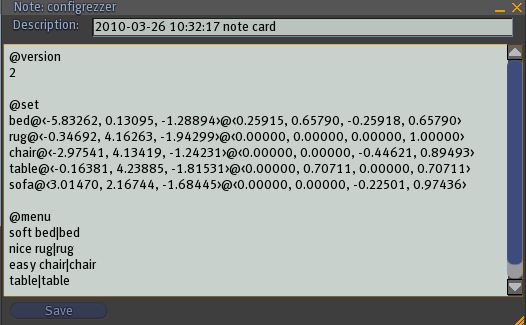
Dont forget to change version number if you want script to read the notecard ! There is a new section @menu. In this section you write the name you want in the menu and the real name for each object.
Now the menu to rez objects has changed :
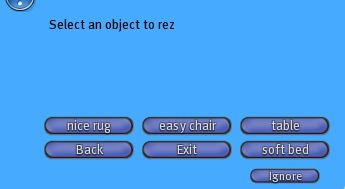
Names are differents and you dont have the sofa because we didn't write it in the section @menu.
Since V1.3 you can show or hide menu options in configuration. Look at configuration page.